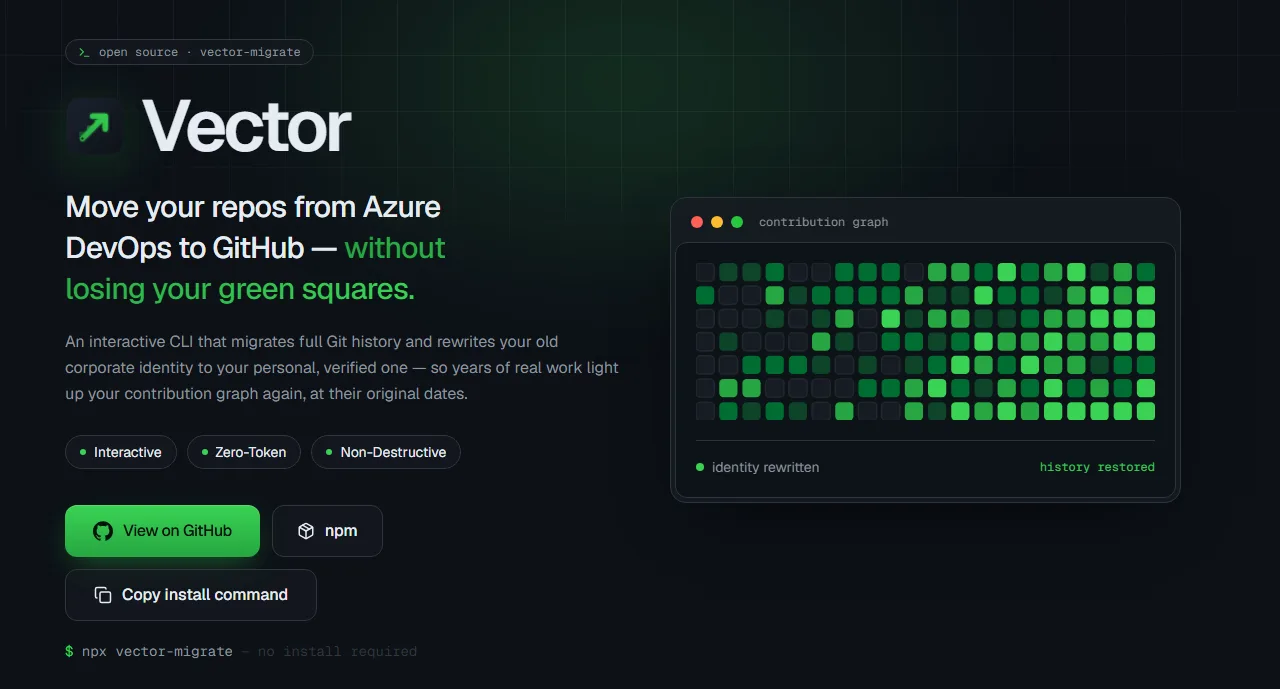
Moving a repository from Azure DevOps to GitHub looks like one git push --mirror. In practice it quietly drops your commits from your GitHub contribution graph, tempts you to paste a token into a URL, and can freeze or fail at the very last step. I built Vector, an open-source command-line tool, to make that migration one safe command on Windows, macOS, and Linux.
This guide covers the problems teams and developers actually hit when they leave Azure DevOps, how Vector solves each one, and how to run it on your own machine or in CI.
Vector at a glance
- Website: vector-snowy-iota.vercel.app
- npm package: npmjs.com/package/vector-migrate
- Source code: github.com/YRACHEK101/Vector
- Try it now, no install:
npx vector-migrate@latest
Why a migration is harder than git push --mirror
The mirror copy itself is easy. Everything around it is where the hours go.
Your contribution graph disappears
Inside a company you commit with your work email, you@company.com. GitHub only counts a commit on your profile when its author email is verified on your GitHub account. Push years of work-email commits to GitHub and none of them light up: the history is there, but it isn't credited to you.
The usual advice is a .mailmap file. It changes how names display in git log, but GitHub doesn't use it for attribution. The only real fix is rewriting the author and committer emails in the commits themselves, which changes every affected commit's SHA, so it has to be done carefully and the same way every time.
The token ends up everywhere
The quick way to authenticate a one-off migration is a Personal Access Token pasted into the clone URL:
git clone --mirror https://user:TOKEN@dev.azure.com/org/project/_git/repoThat token now sits in your shell history, in .git/config, and in any CI log that echoes the command. It's a credential nobody remembers to revoke.
Large pushes hang
Pushing a long history over HTTPS can stall at Writing objects: 100%, waiting on a server acknowledgement that never comes. You find out after the mirror clone and any rewrite are already done, which on a big repository is a long time to wait for nothing.
GitHub rejects files over 100 MB, at the end
GitHub refuses any file larger than 100 MB anywhere in history. An installer someone committed three years ago is enough. The push fails with GH001: Large files detected, again only after the expensive work is finished.
Branch names collide on Windows and macOS
Their default filesystems ignore case. A repository with both Feature and feature, or MBouzine and MBouzine/init_repo, makes history-rewriting tools crash with cannot lock ref. On Linux the same repository works fine, which makes the failure confusing.
"Did we lose anything?" has no easy answer
After the push, someone asks whether every branch, tag, and commit made it. A matching commit count isn't proof: two different histories can have the same count. And when new commits keep landing on Azure during the switch-over, re-running a naive script risks force-pushing over work already on GitHub.
What Vector is
Vector (vector-migrate on npm, version 2.6.2 at the time of writing, MIT-licensed) is an interactive command-line tool that moves Git repositories to GitHub, from Azure DevOps or from another GitHub repository, with the full history. It runs on Node.js 18 or newer and uses two git tools you may already have: git and git-filter-repo.
When you start it, it asks which kind of migration you want:
| Mode | Route | Rewrites identities? |
|---|---|---|
| A | Azure DevOps to GitHub | Yes: your old work email becomes your verified GitHub identity |
| B | Azure DevOps to GitHub | No: a fast, exact mirror |
| C | GitHub to GitHub | Yes: the same rewrite, from an HTTPS or SSH source |
Then it asks only for what's missing: the source, the destination, and, for modes A and C, your identity.
Each problem above has a direct answer:
- Your contribution graph: Vector rewrites your old identity to your verified one, at the commits' original dates, and leaves everyone else's commits untouched. The rewrite is deterministic: the same history and mapping always produce the same SHAs, so later runs only fast-forward.
- Tokens: there are none. Vector authenticates with SSH keys only, and reads its settings from environment variables or in-memory prompts that are never written to disk.
- Frozen pushes: it pushes over a single persistent SSH connection instead of HTTPS.
- Files over 100 MB: it scans the whole history before pushing and names every offender with its size. You choose to strip them from history, move them to Git LFS, or stop.
- Branch collisions: it detects them before the rewrite. On Windows it first tries case-sensitive storage for its working copy; whatever remains, it renames with a
-Nsuffix by default, so every branch still migrates. - "Did we lose anything?": after every push it compares the destination with the migrated history on three axes: every branch and tag exists, every branch tip is the exact same commit, and the commit counts match. On any mismatch it stops with exit code 4 instead of reporting success.
Before you start: one-time setup
You need an SSH key registered on both sides: GitHub, for the push, and Azure DevOps, for the fetch, unless you give Vector an HTTPS Azure URL, which needs no Azure key.
ssh-keygen -t ed25519 -C "you@example.com"   # press Enter at every prompt
ssh -T git@github.com                        # should greet you by username
Add the public key (~/.ssh/id_ed25519.pub) to GitHub under Settings → SSH and GPG keys, and to Azure DevOps under User settings → SSH public keys. GitHub's greeting comes with exit code 1; that's normal, and Vector checks the message, not the code.
Then let Vector check your machine. It changes nothing:
npx vector-migrate@latest --doctorEvery line comes back [✓] or [✗], and each failure prints the exact fix: which tool is missing, which local keys exist, and where to register one. Use @latest so npx doesn't reuse an older cached build.
How to use it on each operating system
The migration itself is the same everywhere: run the wizard and answer its prompts. What differs is installing git-filter-repo.
Windows
git-filter-repo is a Python program, so install Python first (tick "Add Python to PATH"), then:
pip install git-filter-repo
npx vector-migrate@latest
Vector runs natively in Command Prompt or PowerShell, and in Git Bash. For large repositories, WSL is the recommended option: inside it, follow the Linux steps. To diagnose a setup, run npx vector-migrate@latest --doctor from a Command Prompt opened as administrator.
macOS
brew install git-filter-repo
npx vector-migrate@latest
Git is often already installed; if not, xcode-select --install adds it. The macOS default filesystem is case-insensitive like Windows, and Vector handles branch-name collisions the same way.
Linux
sudo apt install -y git git-filter-repo      # Debian and Ubuntu
# or, on any distribution:
pip3 install --user git-filter-repo
npx vector-migrate@latest
On Fedora, sudo dnf install git-filter-repo works too.
What the wizard asks
For an Azure repository, the HTTPS address is the simplest source:
Source:      https://ORG@dev.azure.com/ORG/PROJECT/_git/REPO
Destination: git@github.com:USERNAME/REPO.git
The destination must be an SSH address. For modes A and C, Vector then scans every author on every branch. It recognises you by email only, either the new email you enter or your git config user.email, never by name, because names collide too easily inside one company. If none of the authors is you, it skips the rewrite and keeps everyone's commits as they are, rather than rewriting a colleague's work into your name.
By default every branch and every tag is migrated. Add --branch main to narrow it down, or --dry-run to see the full plan with nothing pushed.
Migrating a whole team
On a shared repository you can remap more than yourself. In the wizard, map each colleague to their new name and email, or skip them to keep their old identity. For automation, keep the mapping in a file in git's standard mailmap format:
Alice New <alice@newco.com> <alice@oldcorp.com>
Bob New <bob@newco.com> <bob@oldcorp.com>
A mapping can change only the name, only the email, or both, and several old identities can be unified into one. That's useful when the same person committed as Y. Rachek, yRachek, and their full name over the years.
Running it in CI
Every prompt has a flag and an environment variable, so a pipeline never needs a terminal:
vector-migrate --mode a --non-interactive \
  --source "https://org@dev.azure.com/org/Project/_git/Repo" \
  --dest   "git@github.com:acme/repo.git" \
  --mailmap ./team.mailmap --yes
Scripts can branch on the exit code:
| Code | Meaning |
|---|---|
| 0 | Success |
| 2 | Bad input: an unknown flag or an incomplete configuration |
| 3 | A git or subprocess failure |
| 4 | Integrity mismatch: the destination doesn't match the migrated history |
| 5 | Divergence: a branch can't be fast-forwarded, and a human must decide |
In non-interactive runs, files over 100 MB are stripped from history by default, with a loud warning. Pass --on-large-file lfs to move them to Git LFS instead, or abort to stop.
Moving gradually: syncing until the switch-over
Few teams move in one afternoon. Run Vector with --sync as often as you like while people still push to Azure: it fetches only the new commits, re-applies the same rewrite so commits already on GitHub keep their exact SHAs, and fast-forwards the difference.
It never overwrites GitHub on its own. A branch that already exists and is identical is skipped; one that differs is reported and left alone. If a branch on GitHub has truly diverged, Vector stops with exit code 5 and names it. Force-pushing happens only when you ask for it with --force or --force-existing.
Once the code lives on GitHub, the next step is usually the pipeline. If you're rebuilding deployments there, our guide to zero-downtime deployments with Docker and GitHub Actions picks up from here.
What you get
For a developer:
- Your years of work show up on your GitHub profile, at their real dates.
- No token to create, paste, leak, or revoke.
- One command, with a diagnostic that tells you exactly what to fix.
For a team or a company:
- Every branch and tag moved, and proof that nothing was lost: ref by ref, tip by tip, commit by commit.
- Attribution kept for everyone, with one mapping file under version control.
- Re-runs that are safe by default, so the switch-over can happen gradually, without a freeze on commits.
- Exit codes and JSON output (
--json) that slot into existing pipelines.
What's next
Vector covers Azure DevOps to GitHub and GitHub to GitHub today. Next, I want to bring the same approach (no tokens, history and attribution kept, every push verified) to more sources, including repositories hosted on AWS and other cloud platforms.
Vector is open source under the MIT license. Try it with npx vector-migrate@latest, and if your migration hits a case it doesn't handle yet, open an issue with your node -v, git --version, and git filter-repo --version: contributions are welcome.
- Website: vector-snowy-iota.vercel.app
- npm: npmjs.com/package/vector-migrate
- GitHub: github.com/YRACHEK101/Vector